Digital boarding pass: how to organize yourself best
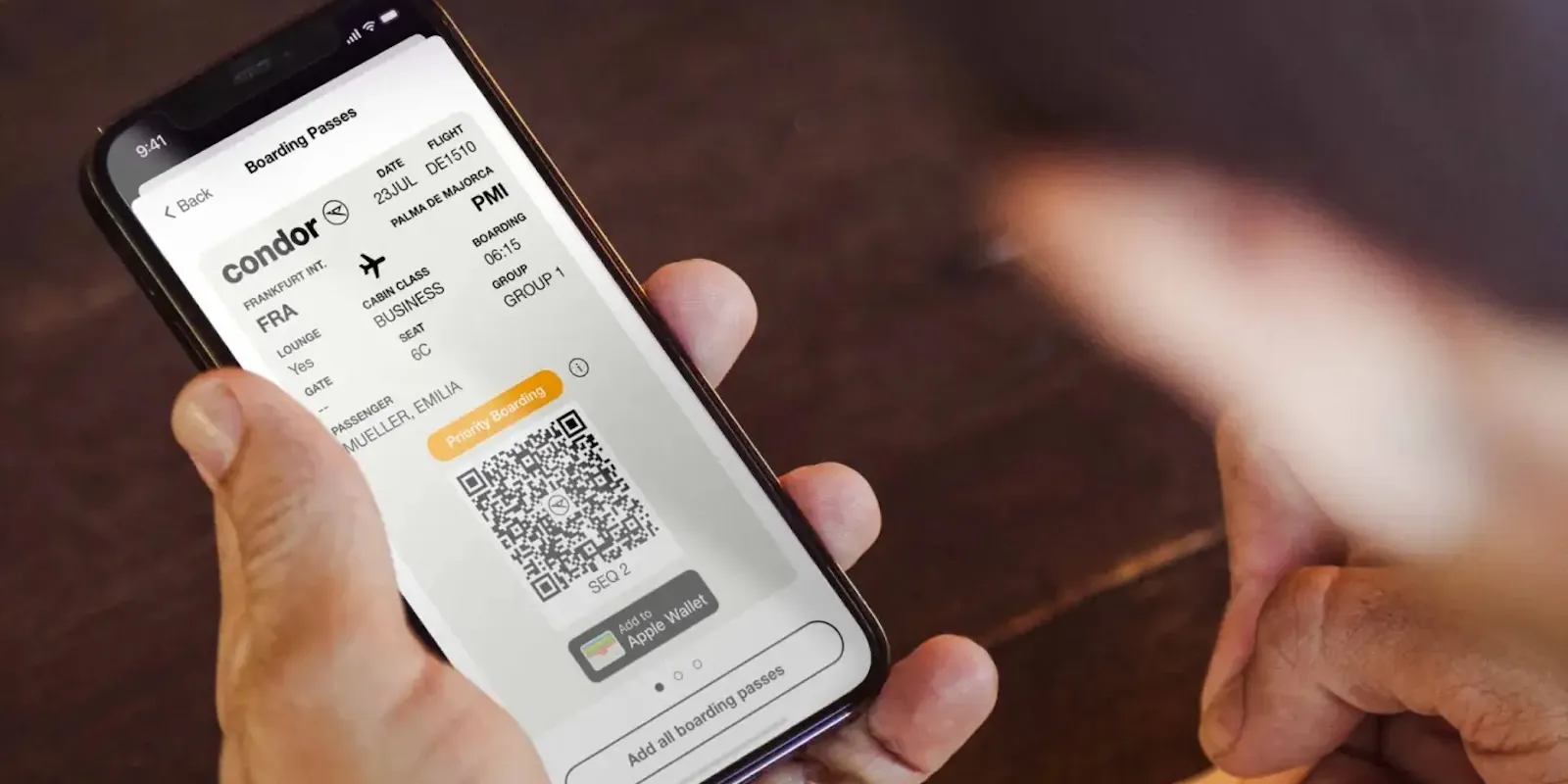
The digital boarding pass works better when saved to Apple Wallet or Google Wallet too, not just the airline app, and when you keep two backups ready in case of technical issues.
Apple Wallet and Google Wallet: what they actually do
From 2026 Apple Wallet offers "enhanced" boarding passes that automatically update gate and time, show directions on Apple Maps, and integrate baggage tracking with Find My, but only with airlines that have activated the feature, including American Airlines, Delta, United, Southwest, Air Canada, Lufthansa, and Qantas. Google Wallet, on Android, offers similar gate and delay notifications with airlines like American, Delta, and United. For more on digital check-in, here's a dedicated guide.
Screen brightness at the scanner
Increasing screen brightness before reaching the scanner makes automatic code reading easier; at terminals with older readers, a code that's too dark or has glare on the screen can require multiple attempts.
Screenshot and paper copy as backup
A backup screenshot saved in your gallery stays useful if the connection is unstable at check time, since the app doesn't need to update to show the code. For international flights, carrying a paper version anyway eliminates the remaining risk at terminals where scanners don't read digital wallets well.
Save your boarding pass to Apple Wallet or Google Wallet as soon as check-in is done, not at the last minute: once the pass is saved it stays readable even without connection, unlike some airline apps that sometimes need to reload over the network.
You might also like...

London Airport: where to stay, areas and recommended hotels
Travel apps: your technology in your pocket
Offline navigation apps: never get lost while traveling
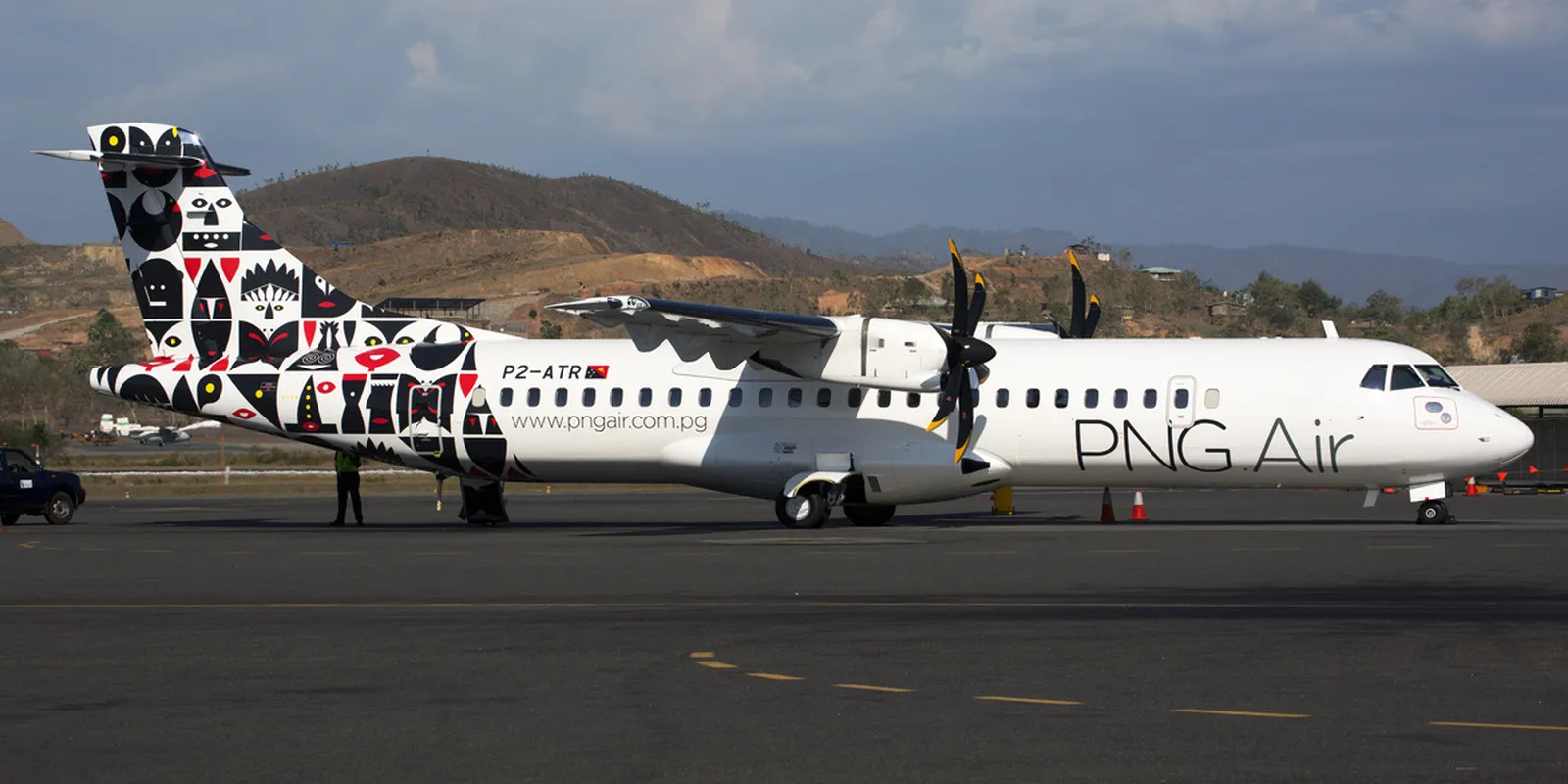
PNG Air: The Plan to Return to Profit by Betting on Mining Charters and ATRs

Lok Nayak Jayaprakash Airport: where to stay, areas and recommended hotels